

Vercel Deployment Checks are automated quality gates that run against every preview deployment before it gets promoted to production. They appear inline in the Vercel dashboard and as GitHub status checks on the PR. Three integrations cover the most common signals:
- Autonoma (E2E testing) - crawls your preview URL, executes full user journeys, catches broken flows and missing pages. Zero test scripts. Self-healing.
- Lighthouse (performance & accessibility) - audits load speed, Core Web Vitals, and accessibility scores.
- Checkly (synthetic monitoring) - runs scripted browser and API checks against the live deployment.
For the Vercel Checks API tutorial and DIY path, jump to the "Build your own" section.
The preview URL is live. The build passed. Nobody clicked anything.
That's the gap most teams live with. npm run build succeeds, Vercel stamps the deployment green, the PR sits there waiting for review - and somewhere in that chain, nobody actually verified that the checkout flow still works, or that the new page renders instead of 404ing, or that the form submits and shows a confirmation instead of a blank screen. Deployment Checks exist to close that gap automatically, on every PR, without anyone having to think about it.
What are Vercel Deployment Checks?
A Vercel deployment check is an external verdict, passed or failed, that runs against a specific preview deployment and surfaces its result in the Vercel dashboard and on the GitHub PR. It's the Vercel primitive for "don't let this ship until X is true."
A Vercel preview deployment goes through several states: queued, building, ready. By default, "ready" just means the build compiled and the deployment is serving traffic. It says nothing about whether the app actually works.
Deployment Checks extend that model. When a deployment reaches "ready," Vercel notifies registered integrations and waits for their verdict. Each integration runs its quality signal - performance audit, synthetic check, E2E test suite - and reports back a conclusion: passed or failed. The deployment dashboard shows each check inline. The GitHub PR shows each check as a commit status. If you've enabled branch protection rules, a failed check blocks the merge.
Vercel ships with build-level signals baked in: a TypeScript compile error or a missing environment variable fails the deployment before it ever reaches "ready." Deployment Checks are the extension point for everything after the build - the layer that verifies the running application, not just the build artifact.
For a primer on how preview deployments work before diving into checks, see our Vercel preview deployments guide.
How the Checks API works
When a deployment transitions to "ready," Vercel fires a webhook to each registered integration. The integration receives the deployment ID and the preview URL, then calls POST /v1/deployments/:id/checks to register a check in a "running" state. It does its work - runs tests, computes scores, pings APIs - then calls PATCH /v1/deployments/:id/checks/:checkId to submit the conclusion.
The Vercel UI updates in real time. A running check shows a spinner next to the deployment. A passed check gets a green checkmark. A failed check turns red, surfaces the failure details, and - if you've enabled "Required" status on that check - prevents the deployment from being promoted to production.
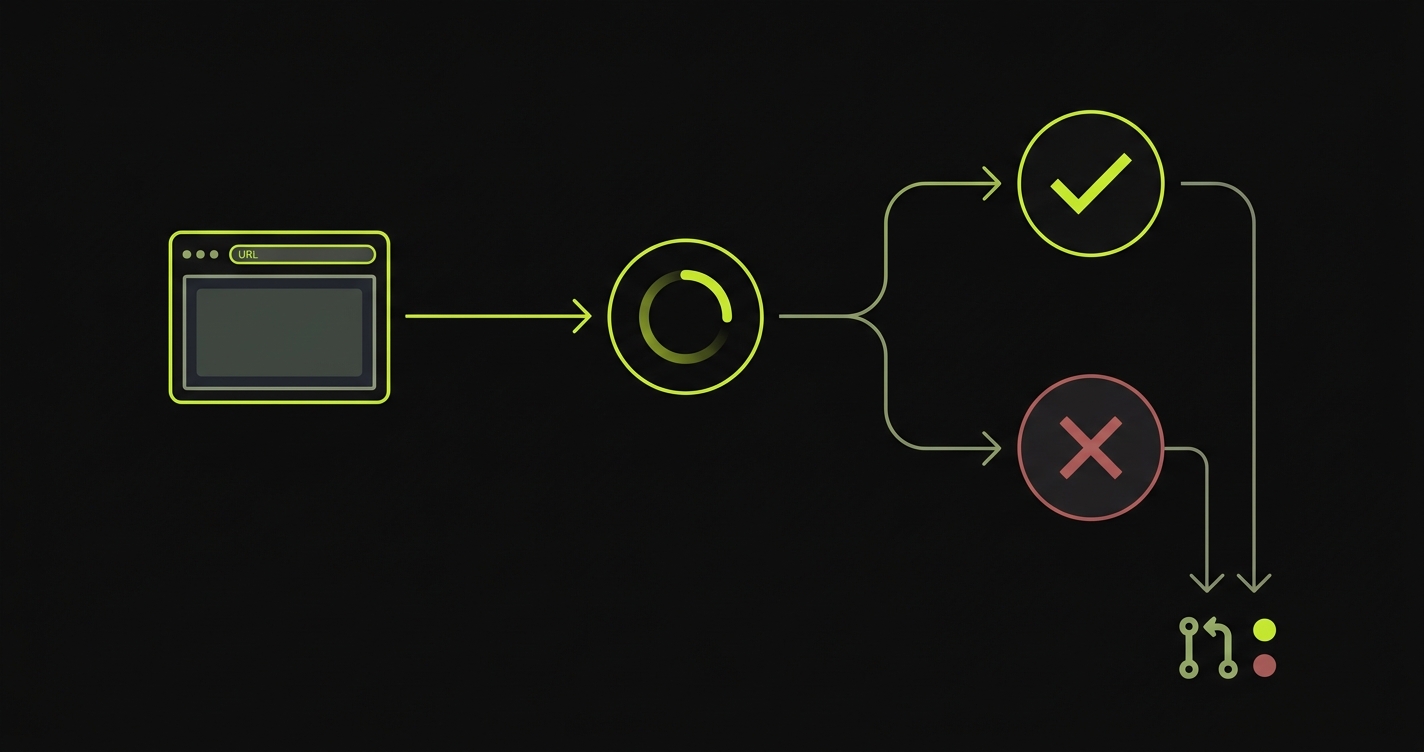
Every Marketplace integration - Lighthouse, Checkly, Autonoma's Vercel Marketplace integration - is built on this same primitive. You can also build on it directly, which we cover in the "Build your own" section below.
The Deployment Check Ecosystem
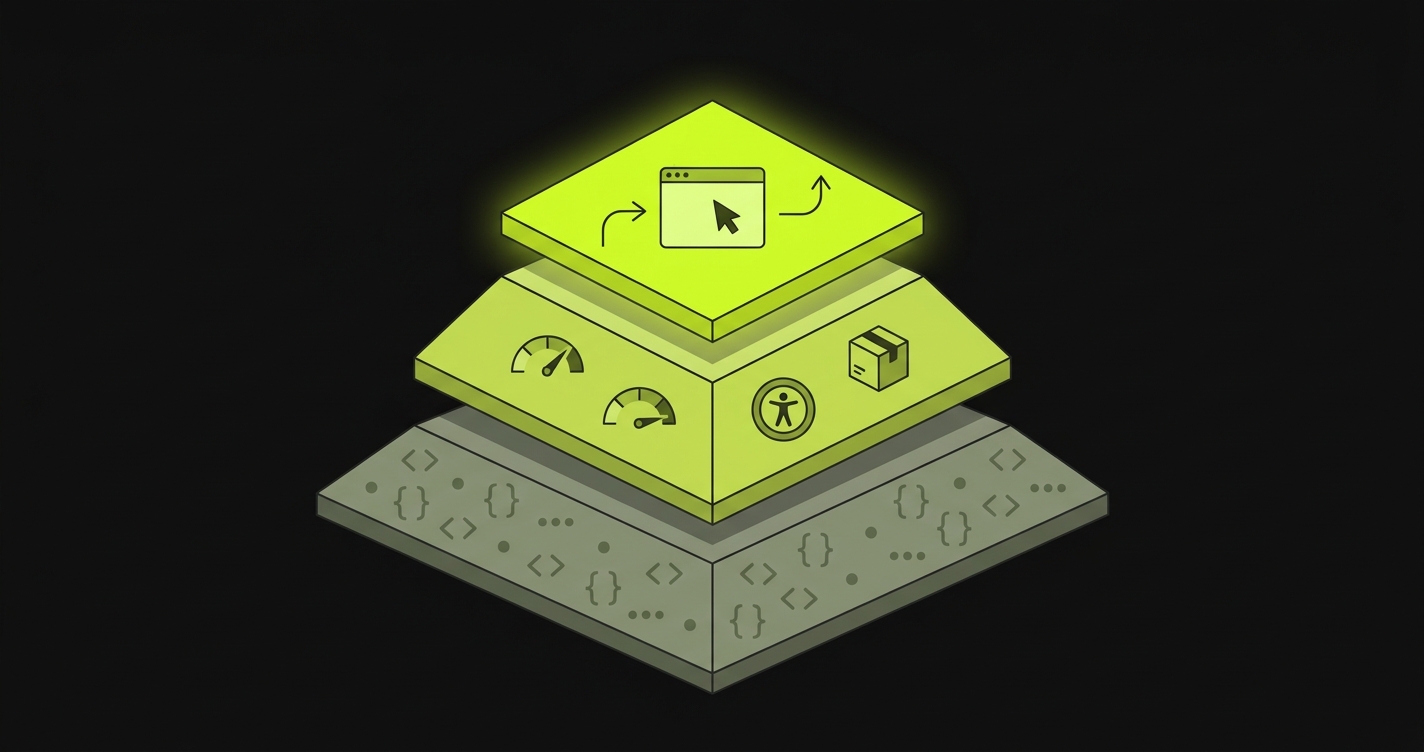
Not all checks are created equal, and understanding the hierarchy matters when deciding which ones to invest in.
Build checks are what most teams already have. TypeScript compiles, ESLint passes, unit tests green. These are fast, cheap, and run inside CI before Vercel even starts building. They verify that the code is syntactically correct and that your units behave the way the author intended. They tell you nothing about whether the app works when a real user hits it.
Integration checks are what some teams have. Lighthouse audits your performance budget. A bundle-size checker flags if your JavaScript grew by 40KB. An accessibility scanner catches WCAG violations. These run against the deployed preview URL, so they're slower, but they add a layer of confidence about the build output's quality characteristics. They still don't click anything.
E2E checks are what almost no team has, even though they catch the highest-value bugs. Does the login flow complete? Does the checkout go through? Does the new page exist and render correctly? These require a real browser, navigating real paths, submitting real forms against the live preview URL. Historically, setting this up meant writing Playwright scripts, maintaining selectors, handling auth bypass, wiring CI - a whole project. Most teams skip it.
The Vercel Marketplace changed the calculus on type 2 and type 3. What used to require custom CI wiring is now a 5-minute Marketplace install. The gap that used to justify skipping E2E checks no longer exists.
Available Deployment Check integrations
Three integrations cover the most common quality signals on the Vercel Marketplace. They each operate at a different tier of the ecosystem above, and that difference matters when you're deciding what to install. Note that the Marketplace and the Checks API are Pro and Enterprise plan features. If you're on the Hobby plan, skip ahead to the "Build your own" section for the alternative path.
Autonoma (E2E testing)
Autonoma is the only Marketplace integration that runs full E2E flows against your preview URL. After connecting your codebase, Autonoma's Planner agent reads your routes, components, and user flows to plan test cases. The Automator agent executes them against the live preview URL. The Maintainer agent keeps tests passing as your UI changes.
What this catches: broken navigation flows, 404s on newly added or renamed pages, forms that don't submit, features that regressed silently, checkout flows that error out midway. The class of bug that only surfaces when a real browser navigates a real path through a real deployment.
There are no test scripts to write. Autonoma derives tests from your codebase - the codebase is the spec. And because the Maintainer agent runs continuous self-healing, tests don't break when your UI changes.
Lighthouse (performance and accessibility)
Lighthouse is Google's open-source audit tool, available as a Vercel Marketplace integration. It loads your preview URL in a headless browser, runs a battery of audits, and scores you on performance, accessibility, SEO, and best practices. You set thresholds - fail if performance drops below 80, for instance - and the check fails if those thresholds aren't met.
What it catches: performance regressions, Core Web Vitals degradation, accessibility issues (missing alt text, poor color contrast, keyboard navigation gaps), SEO problems. What it doesn't catch: whether your app actually works. Lighthouse doesn't submit forms, navigate flows, or verify that any feature does what it's supposed to do.
Checkly (synthetic monitoring)
Checkly is a synthetic monitoring platform with a Vercel integration that can run browser checks and API checks against preview deployments. You write Playwright scripts for the browser checks - Checkly executes them and reports the result as a Deployment Check.
What it catches: if you've written and maintained the scripts, it catches broken flows. It's a capable tool. The catch is the setup overhead: each check requires a Playwright script, which requires selectors, which break when your UI changes. Checkly positions itself primarily as a post-deploy monitoring tool; using it as a pre-merge gate is possible but requires more investment than it might initially appear.
The choice usually comes down to what kind of failure you're trying to prevent. If you want functional coverage, did the thing my users do still work, that's Autonoma. If your primary concern is a performance or accessibility budget, Lighthouse. If you already own and maintain Playwright scripts and want a monitoring surface for them, Checkly.
| Integration | What it checks | Setup time | Ongoing maintenance | Catches real bugs? |
|---|---|---|---|---|
| Autonoma | Full E2E flows - navigates the app, fills forms, validates user journeys | ~5 min (Marketplace install + point at preview URL) | Zero. Tests regenerate when the UI changes. | Yes - catches broken flows, missing pages, regressed features. |
| Lighthouse | Performance, accessibility, SEO, best-practices audits | ~5 min | Low - thresholds occasionally need tuning. | Not functional bugs. Catches perf regressions. |
| Checkly | Synthetic monitoring - scripted API and browser checks | ~30 min (write Playwright scripts) | Medium - scripts break when selectors change. | Yes, if you've written and maintained the scripts. |
Setting up Autonoma as a Deployment Check
The install takes about 5 minutes. Here's how it works.
Install from the Vercel Marketplace
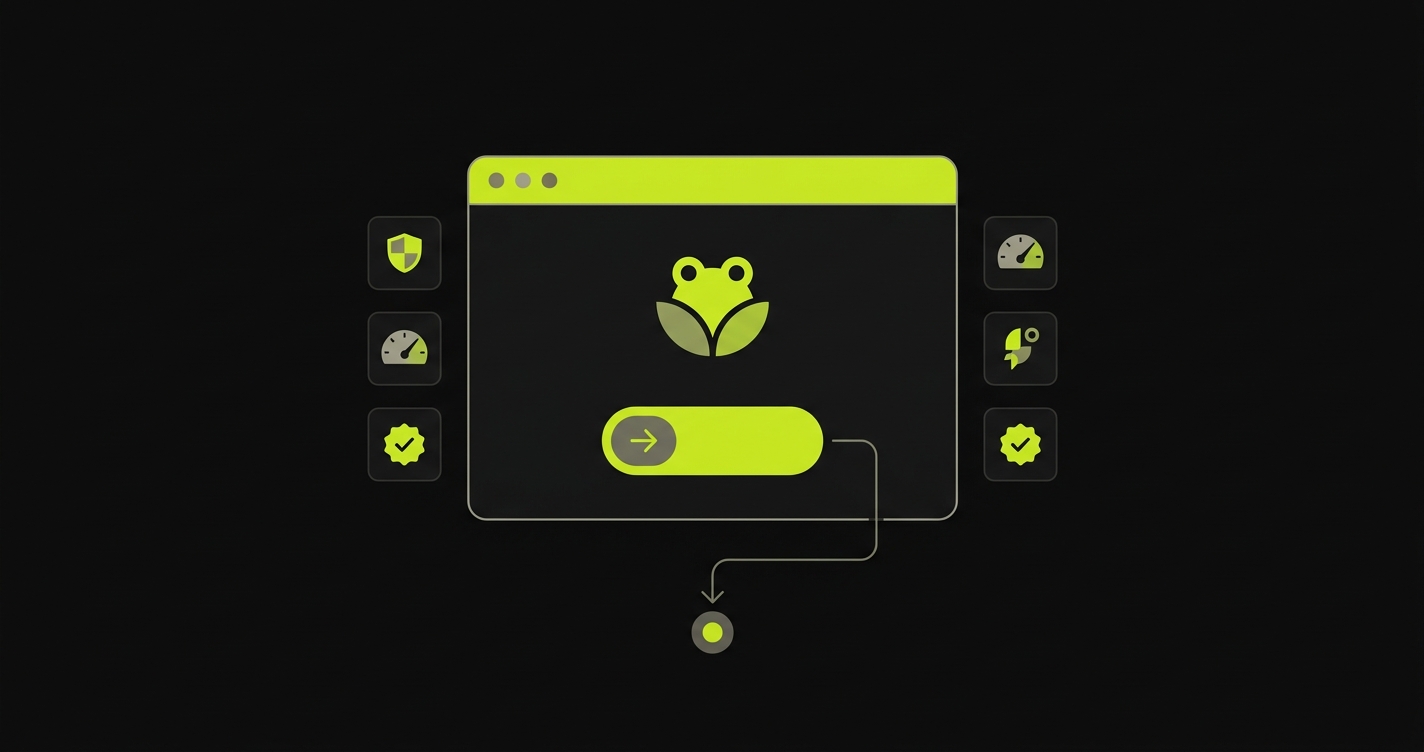
Open the Vercel Marketplace and search for Autonoma. One click installs the integration. Vercel handles the registration on its end - Autonoma gets added to the list of Deployment Checks that run on your project. The Autonoma Vercel setup guide walks through the Marketplace page and project scoping in detail if you want a deeper walkthrough.
Authorize Autonoma against your Vercel project
After the Marketplace install, Autonoma requests OAuth authorization scoped to your project. This gives Autonoma access to deployment webhook events and the ability to register checks. It does not get write access to your codebase or your production deployment. The scope is narrow by design.
Let Autonoma discover your app's flows
No test scripts. Connect your codebase to Autonoma and the Planner agent reads your routes, components, and user flows to plan test cases. It generates the tests automatically - you don't write Playwright, you don't define selectors, you don't configure a test runner. The codebase is the spec.
Autonoma also handles database state setup for tests that need it. The Planner agent generates the endpoints needed to put your DB in the right state for each test scenario, so tests don't fail because of missing fixtures.
Open your next PR
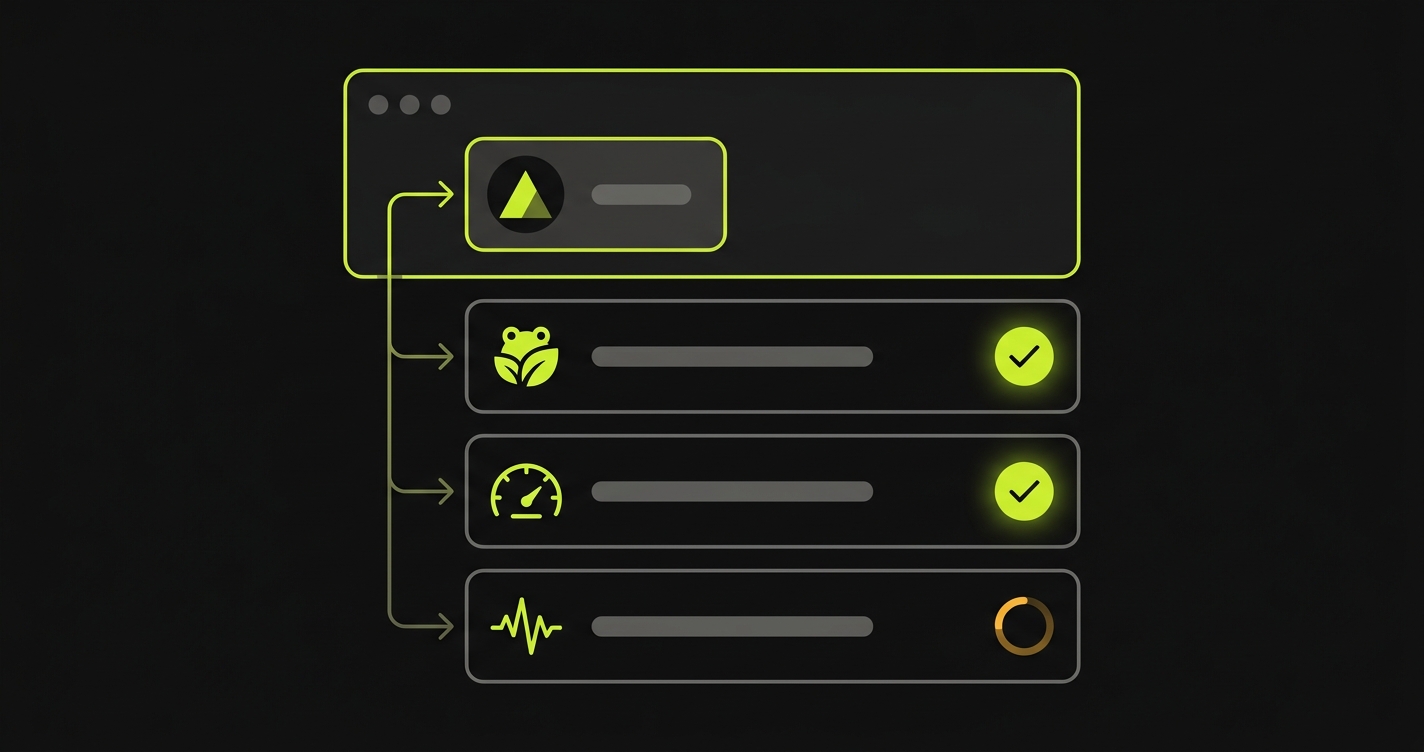
From this point, Autonoma runs as a Deployment Check on every preview. Open a PR, Vercel builds the preview, Autonoma registers a check, runs E2E tests against the preview URL, and reports the conclusion back to the deployment dashboard and to the GitHub PR status.
How Autonoma handles the x-vercel-protection-bypass header
Vercel preview deployments have Deployment Protection enabled by default. A raw GET request to the preview URL returns a login wall, not your app. Any test tool that doesn't handle this correctly will fail against every protected preview - not because the app is broken, but because it couldn't get in.
Vercel provides a first-party mechanism for automated access: the x-vercel-protection-bypass header. Set it to your project's bypass secret and Vercel lets the request through. For the full story on preview auth - how to find the secret, how to configure it for different CI setups - see our post on E2E testing preview environments.
Autonoma handles this automatically. The OAuth integration gives Autonoma the context it needs to inject the header on every test request. You don't configure a secret, you don't add it to GitHub Actions secrets, you don't touch your Playwright config. It's invisible.
DIY CI pipelines have to plumb this themselves: generate the bypass secret in Vercel's dashboard, add it to GitHub Secrets, read it in the workflow, pass it to Playwright's extraHTTPHeaders config. Each step is straightforward in isolation, but it's toil that accumulates. Autonoma eliminates it.
What happens when a check fails
This is the quality gate in action.
A failing Autonoma check turns the deployment check red. On the GitHub PR, the commit status goes red. If you've configured branch protection to require the Autonoma check, the merge button grays out. The PR is blocked.
The Autonoma dashboard shows exactly what happened: which flow it was testing, what step it reached, what it expected to see, what it actually saw, and a screenshot of the failure state. You're not debugging a stack trace - you're watching a replay of the moment the test broke.
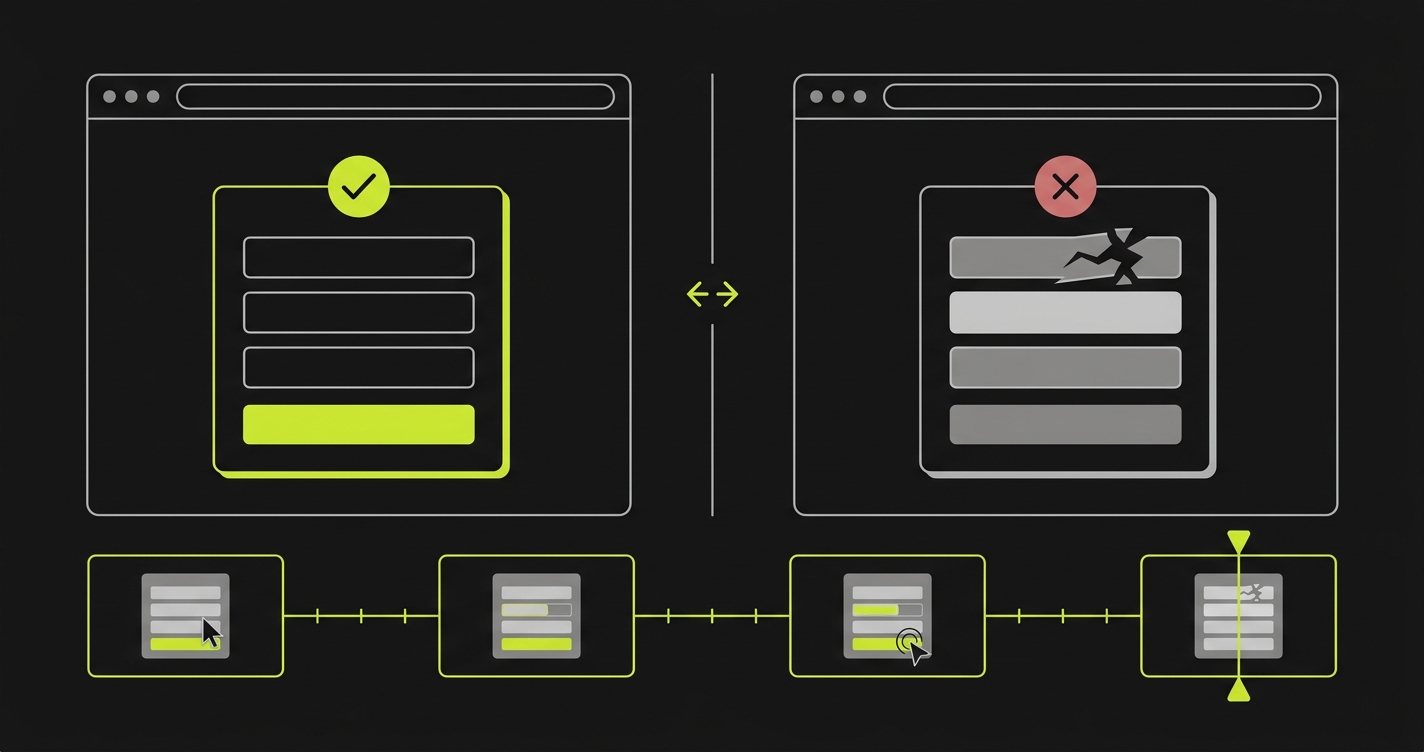
Fix the bug, push the commit, Vercel builds a new preview, Autonoma reruns the check automatically. No manual re-trigger, no waiting for a human reviewer to unblock the PR. The cycle is: push, deploy, check, fix, repeat. It's the same replay view you get in the broader regression testing workflow for Vercel preview deployments, tailored for the single-PR case.
Making the check Required
By default, a failing Deployment Check is informational. It turns red, but it doesn't block anything unless you explicitly wire it into a branch protection rule. In your Vercel project settings, each installed check has a "Required" toggle. Enabling it tells Vercel the check must pass before a deployment can be promoted to production. Pair it with a GitHub branch protection rule that marks the Autonoma commit status as required, and the PR merge button grays out until the check turns green. That pairing is what converts a nice-to-have signal into an actual quality gate.
Optional Slack and email notifications fire when a check fails, so the engineer who pushed the commit gets notified immediately rather than discovering the red status during code review.
Build your own with the Checks API
If you want full control over the quality signal - a custom test runner, an internal scoring system, a proprietary benchmark - the Checks API is the primitive to build on.
The workflow: listen for the deployment.succeeded webhook. When it fires, call POST /v1/deployments/:id/checks to register a check in "running" state. Run your test suite against the preview URL from the webhook payload. When it finishes, call PATCH /v1/deployments/:id/checks/:checkId with the conclusion - "succeeded" or "failed" - and any output you want surfaced in the dashboard.
The Vercel Checks API docs cover the full payload shape and authentication. What the docs don't cover is the surrounding scaffolding: your own webhook server to receive the event, your own test runner (Playwright, Cypress, whatever you use), your own solution for the x-vercel-protection-bypass header, your own reporting layer so failures are actionable.
For many teams, that's the right call. Internal test infrastructure, custom assertions, unique quality signals - there are cases where building beats installing. For teams that want E2E checks running on previews today without a bespoke project, a Marketplace integration is usually the faster path to value.
FAQ
Vercel Deployment Checks are automated quality gates that run against a preview deployment after it finishes building. They appear in the Vercel deployment dashboard and as commit status checks on the GitHub PR. Registered integrations receive a webhook when a deployment is ready, run their quality signal, and report a pass/fail conclusion back to Vercel. Failed checks can be configured to block a deployment from being promoted to production.
Install an integration from the Vercel Marketplace. Once installed, the integration automatically registers checks on every new deployment for the scoped project. No GitHub Actions workflow or manual configuration is required. The three most common integrations are Autonoma for E2E testing, Lighthouse for performance and accessibility, and Checkly for scripted synthetic monitoring.
Use the Vercel Checks API. Listen for the deployment.succeeded webhook, call POST /v1/deployments/:id/checks to register a check in a running state, run your test suite or scoring logic against the preview URL from the webhook payload, then PATCH the same check with the conclusion (succeeded or failed) and any output you want surfaced in the deployment dashboard.
Yes. In your Vercel project settings, you can mark a Deployment Check as "Required." A failed required check prevents the deployment from being promoted to production. Combined with GitHub branch protection rules that require the associated status check, this blocks the PR merge until the check passes.
Build checks run during the Vercel build process itself - compile errors, missing environment variables, build script failures. They fail the deployment before it ever reaches 'ready.' Deployment Checks run after the deployment is live and serving traffic. They verify the running application: performance, accessibility, functional flows. Build checks are automatic; Deployment Checks require installing an integration or building against the Checks API.
No. Autonoma's Planner agent reads your codebase - routes, components, user flows - and generates test cases automatically. You connect your codebase, and the agents plan and execute tests without you writing Playwright scripts, defining selectors, or configuring a test runner. The codebase is the spec.
Vercel preview deployments with Deployment Protection enabled require the x-vercel-protection-bypass header for automated access. Autonoma injects this header automatically via its OAuth integration - you don't configure a bypass secret, add it to GitHub Secrets, or touch your Playwright config. The header is handled invisibly as part of the Marketplace integration.
Check duration depends on the number of critical flows in your application. Most checks complete within 2-5 minutes for typical web applications. Autonoma runs checks in parallel where possible and prioritizes the flows most likely to catch regressions. You'll see real-time status in the Vercel dashboard as each flow completes.
Vercel Deployment Checks are available on Pro and Enterprise plans. The Hobby plan does not support Marketplace integrations or the Checks API. If you're on Hobby, the DIY path - a GitHub Actions workflow triggered by the deployment_status event - is the alternative for pre-merge E2E testing on previews.
If you're wiring Deployment Checks on Vercel and want a second pair of eyes, we've set this up a few times. Grab 20 min with a founder
Build checks verify the code compiles. Integration checks verify the build is healthy. E2E checks verify the product actually works. Vercel Deployment Checks make all three visible on every PR, without custom CI wiring, without test maintenance, without anyone having to think about it.
To get started, install Autonoma from the Vercel Marketplace or follow the step-by-step Autonoma Vercel setup guide.


