

Vercel preview deployments are ephemeral, per-PR environments at a unique Vercel URL, deployed automatically on every push. Getting them live is automatic; getting them tested before merge is not. A complete stack has three layers: visual review, CI checks, and live E2E against the preview URL.
A complete Vercel preview environment testing stack has three layers: visual review, CI checks, and live E2E against the preview URL. Most teams have one of the three. Some have two. Almost nobody has all three running reliably before merge.
That gap has a cost. Not an abstract "technical debt" cost, a concrete one. A regression that reaches production because nobody ran a real test against the preview URL takes longer to detect, longer to diagnose (the preview is gone by then), and longer to fix under the pressure of a live incident. The preview environment existed. The testing layer didn't.
This guide walks through all three layers: what each one catches, where the setup usually breaks down, and how to close the gap with a GitHub Actions workflow or a native Vercel Deployment Check, depending on how much you want to own.
How Vercel Preview Deployments Work
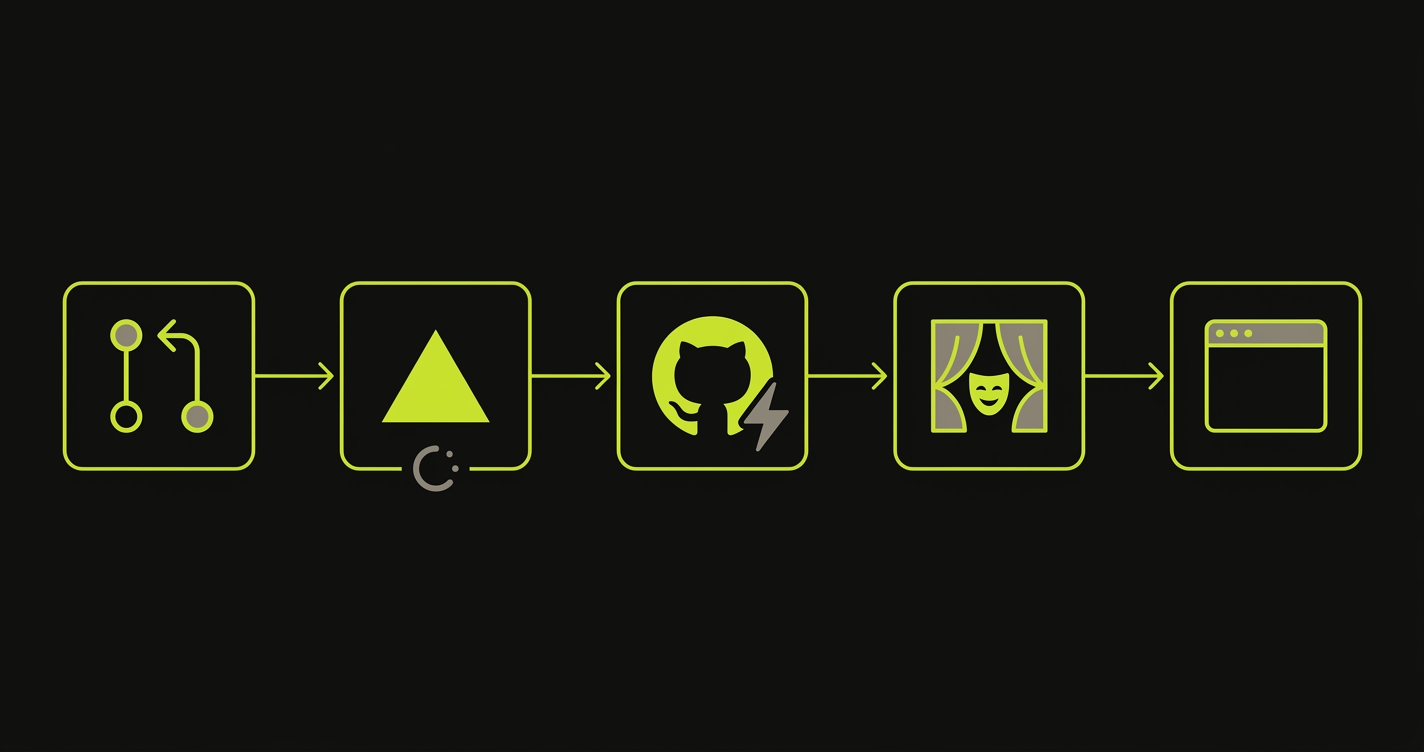
When you open or push to a pull request on a Vercel-connected repository, Vercel builds your application from that branch and deploys it to a unique Vercel preview environment. The deployment is isolated: it doesn't share state with your production environment, and it doesn't interfere with other open PRs.
Commit URL vs Branch URL: Which Vercel Preview URL to Test
Every deployment actually gets two Vercel preview URLs:
- Commit URL:
project-9charhash-scope.vercel.app. Pinned to a specific commit. Stable once created. - Branch URL:
project-git-branch-scope.vercel.app. Always points to the latest commit on that branch. Moves when you push.
For tests, you almost always want the commit URL. A branch URL moves with every push and can flake mid-run if your test starts against commit A and finishes against commit B. Vercel also truncates URLs past 63 characters, so long branch names get chopped, another reason to prefer the commit form.
How Vercel Signals a Preview Is Ready
Vercel posts a deployment_status event to GitHub when the deployment completes. That event is a GitHub webhook fired for any deployment, including Vercel previews. It contains the commit URL in the target_url field (with environment_url as a fallback), which is what automated tools use to know where to point their tests. When the PR is merged or closed, Vercel tears the preview environment down.
There's a second, closely related mechanism: the vercel.deployment.ready event, fired as a repository_dispatch payload and consumed by Vercel's Deployment Checks feature. deployment_status is the right trigger for pre-merge E2E on previews. vercel.deployment.ready is the right trigger when you want to gate production promotion behind a registered Deployment Check. Most teams only need the first. We cover the second in Option B below.
The mechanics are covered in more depth in our preview environments overview and the staging vs preview environment comparison if you want the full context. Here, we're focused specifically on the testing layer.
The Vercel Preview Testing Stack
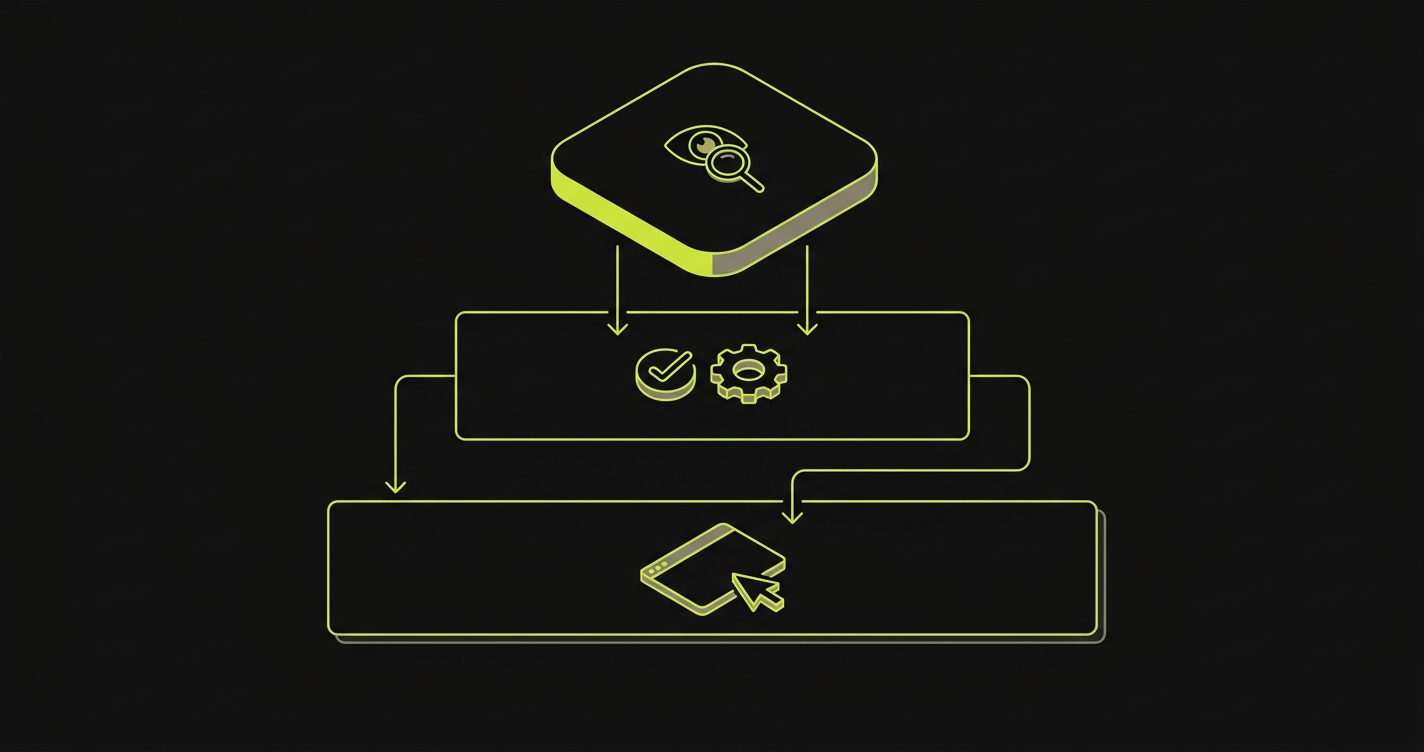
There are three distinct layers of testing that a mature Vercel preview environment workflow includes. Most teams have Layer 1. Some have Layer 2. Almost none have Layer 3.
Layer 1: Visual Review (What You Already Do)
This is the baseline: someone on the team opens the preview URL and looks at it. Maybe they click through the critical path. Maybe they check that the UI didn't visually break. It's valuable, but it's also asynchronous, inconsistent, and doesn't scale. It catches visible regressions if someone happens to look in the right place.
Visual review is not a testing strategy. It's a sanity check.
Layer 2: CI Checks (What You Probably Have)
This layer includes your unit tests, linting, type checking, and build validation. These run in CI against the code, not against the deployed preview URL. They're fast and cheap, which is why most teams have them. They catch code-level errors, but they don't catch the class of bugs that only appear when the application is actually running. An API integration that breaks due to an environment configuration difference. A component that renders differently when real network requests are in flight. A form that fails validation against the actual backend.
Layer 2 is necessary but not sufficient.
Layer 3: E2E Testing on the Live Preview URL (What You're Missing)
Layer 3 means running a real browser against the real preview URL, exercising real flows against real backend services. It's the only layer that catches environment-specific regressions.
Concrete examples of bugs Layer 3 catches that Layers 1 and 2 cannot:
- An authenticated route that works with a mocked user in unit tests but 500s against the real preview environment's JWT issuer
- A form that submits fine in local dev but fails validation against the preview's actual backend because an env var differs
- A component that renders correctly in Storybook but breaks in production when network requests are in flight
When this layer is missing, the gap between "tests pass in CI" and "the feature works" is filled by humans clicking around in the preview environment.
Layer 3 is where the meaningful regression prevention happens, and it's the layer this guide is about closing. For a platform-agnostic walkthrough of the same pattern across Vercel, Netlify, and other hosts, see E2E testing on preview environments. For teams building on ephemeral preview environments more broadly, the same three-layer model applies.
Option A: Playwright + GitHub Actions (Full DIY Setup)
The manual path uses GitHub Actions to listen for Vercel's deployment_status event, extract the preview URL, and run Playwright against it.
The workflow triggers on deployment_status, filters for state == 'success' and environment == 'Preview', and sets PLAYWRIGHT_BASE_URL from github.event.deployment_status.target_url. Here's the full workflow:
Your Playwright config reads baseURL from that environment variable and injects the protection bypass header so tests can access previews that have Vercel Protection enabled:
With that config in place, a minimal smoke test hits the preview root and confirms the app actually loaded:
This setup works well for teams that already have Playwright experience and want full control over their test suite. The tradeoff is maintenance: you own the workflow YAML, the Playwright config, the test files, and the overhead of keeping all three in sync as your application changes. For a deeper walkthrough of the same pattern focused on catching regressions specifically, see our regression testing guide for Vercel preview deployments.
There's an alternative pattern you'll see in other guides: patrickedqvist/wait-for-vercel-preview is a GitHub Action that polls for a ready preview URL rather than listening for the deployment_status event. Both approaches solve the same problem. Event-driven (deployment_status) is cleaner for CI because it fires exactly once when the deploy is ready. Polling (wait-for-vercel-preview) is useful when you want the build workflow and the test workflow in the same YAML file. Pick one, don't wire up both.
Option B: Autonoma + Vercel Deployment Checks (The Zero-Config Path)
Autonoma is available on the Vercel Marketplace as a native Deployment Check integration. The setup is different from the DIY path in one fundamental way: you don't write tests.
You connect your codebase to Autonoma, and three agents take over from there. The Planner agent reads your routes, components, and user flows, then plans test cases from your code. The Automator agent executes those tests against each preview URL. The Maintainer agent keeps them passing as your code changes.
The results appear as a Deployment Check in your Vercel dashboard and as a GitHub status check on the pull request. You can configure Vercel to block promotion to production if the check fails.
We wrote about the full Vercel integration in the Autonoma + Vercel Marketplace announcement, including how Deployment Checks work at the platform level and how we handle database state setup for tests that require it.
The practical difference from Option A: there's no GitHub Actions workflow to manage, no Playwright config to maintain, and no test files that go stale when you refactor. The codebase is the spec.
How Deployment Checks Work at the Platform Level
If you want the gated-promotion behavior but want to own the test runner yourself (the "Deployment Checks + custom integration" row in the comparison table below), here's what the Marketplace integration is doing under the hood.
A Vercel Deployment Check is a gate registered in Project Settings → Deployment Checks. Vercel fires a vercel.deployment.ready event as a GitHub repository_dispatch payload whenever a deployment is ready for verification. Your workflow consumes that event, runs whatever tests you want, and reports the result back using the vercel/repository-dispatch/actions/status@v1 action. Vercel blocks production promotion until every registered check reports success.
The distinction between vercel.deployment.ready and vercel.deployment.success matters here: ready fires when the deployment is built and waiting on registered checks, success fires after all checks have passed and the deployment is live. Register on ready if you want your workflow to be the gate; listen to success if you want to react to a confirmed-live deployment.
This is what Autonoma's Marketplace integration handles automatically. If you build the integration yourself, the main gotcha is commit correctness (see Common Failures below).
How the x-vercel-protection-bypass Header Works
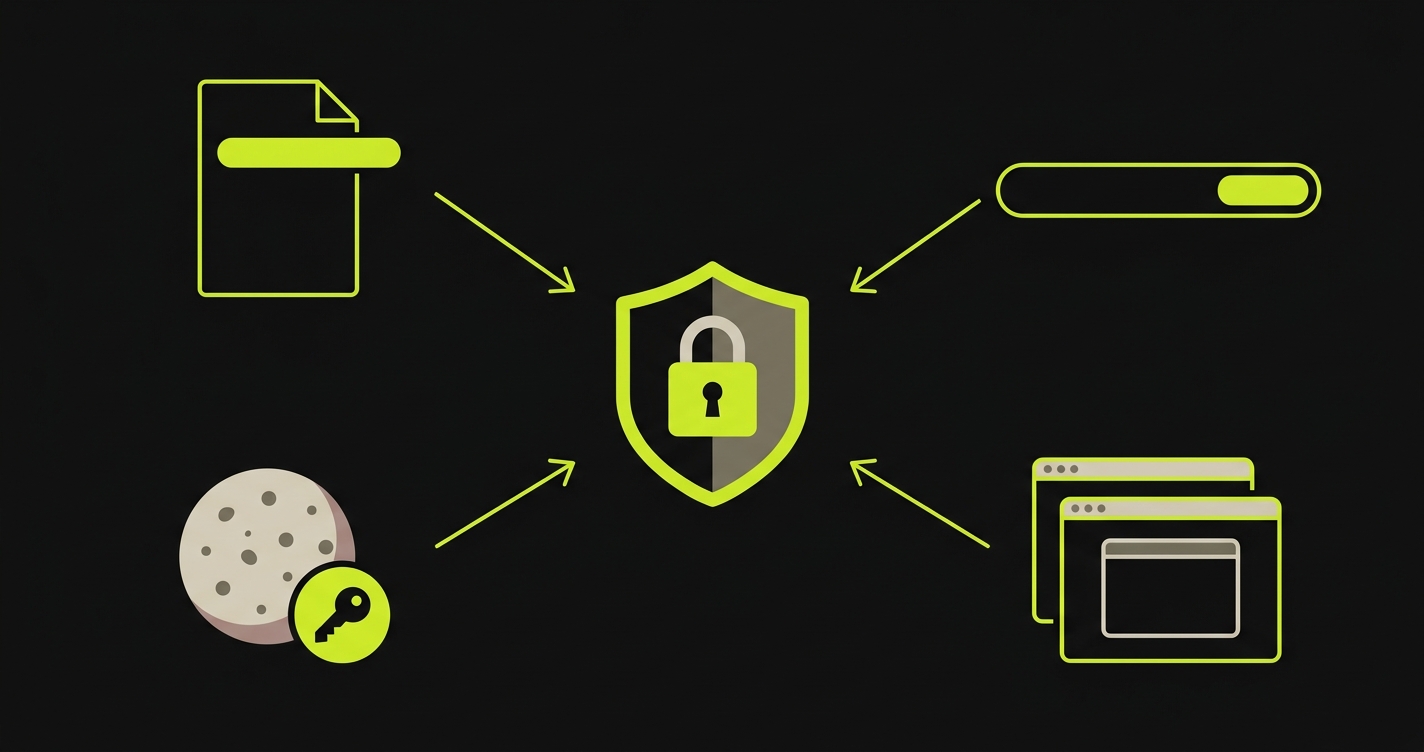
Vercel's Deployment Protection feature restricts preview access to authenticated users by default. This is useful for keeping previews private, but it blocks automated tools from accessing the preview URL unless you configure a bypass.
Vercel provides a bypass secret per project. You set it in Project Settings under Deployment Protection, then pass it in one of three ways depending on what's making the request:
- Header:
x-vercel-protection-bypass: YOUR_SECRET. The default for test runners and SDKs you control. Playwright, curl, fetch. - Query parameter:
?x-vercel-protection-bypass=YOUR_SECRET. Use when the caller can't set headers, typically webhook verification endpoints (Slack, Stripe, GitHub App webhooks). - Cookie mode: add
x-vercel-set-bypass-cookie: trueon the first request and Vercel sets a bypass cookie. Every follow-up navigation in the same browser context is authorized. Use this for Playwright flows that dopage.gotofollowed by internal link clicks, or for visual review tools. - Cross-site contexts: set
x-vercel-set-bypass-cookie: samesitenonewhen loading the preview inside an iframe (Chromatic, Percy, Storybook embeds).
Vercel auto-injects the bypass secret into your preview deployments as VERCEL_AUTOMATION_BYPASS_SECRET. You don't have to copy-paste it into GitHub secrets for workflows that run inside the deployment itself. For workflows that run outside the deployment (like a separate Playwright workflow triggered on deployment_status), you do still need to mirror it as a repo secret.
A few operational details that are easy to miss and tend to bite teams later:
- Multiple named secrets per project. Vercel lets you create more than one bypass secret (for example
ci-cdandplaywright-tests) and rotate them independently. Useful when you want to revoke one integration without regenerating the secret every other integration uses. - Rotation invalidates previous deployments. Regenerating or deleting a bypass secret invalidates the secret for existing deployments that were built with it. You have to redeploy to pick up the new value. If your tests suddenly start 401-ing after a rotation, this is usually the cause.
- What the bypass does not override. Bypass tokens authorize access through Deployment Protection. They don't override Vercel's active DDoS mitigations, rate limits during an attack, or challenge requirements during an attack. During normal operation none of that matters; during an incident it's worth knowing.
- Side effect on Bot Protection. The automation bypass token also suppresses Vercel's Bot Protection challenges for bypassed requests. That's the behavior you want for test automation, and it's worth knowing if you ever debug why a real browser gets challenged and your test runner doesn't.
For Playwright, the header approach goes in extraHTTPHeaders in your config (shown in the spec above). It applies globally to all requests in the test context, which is what you want. If you're calling specific routes manually with apiRequest, you need to add the header there too. The bypass header is not a session token, it's a per-request header.
Here's the curl equivalent to verify bypass access manually before wiring it into your test suite:
If you're using Autonoma's Deployment Check integration, the bypass is handled automatically. The integration authenticates into your preview via the Marketplace flow, so you don't need to manage a protection-bypass secret yourself. Check the Autonoma + Vercel integration docs for the exact current behavior.
Comparison: Four Ways to Test Vercel Previews
| Approach | Setup effort | Preview URL handling | Auth bypass | Results visibility | Maintenance |
|---|---|---|---|---|---|
| Vercel Deployment Checks + Autonoma | Low. Connect codebase, done | Automatic via Marketplace integration | Handled by the integration | Vercel dashboard + GitHub status check | Self-healing agents |
| Vercel Deployment Checks + custom integration | High. Build and host the integration yourself | Vercel calls your webhook with the URL | You manage the bypass secret | Vercel dashboard + GitHub status check | You own all of it |
| GitHub Actions + Playwright | Medium. Workflow, config, test files | Extracted from target_url event field | Set via extraHTTPHeaders | GitHub Actions run + PR check | You maintain tests and config |
| Manual review only | None | You open it in a browser | Vercel auth prompt | Whatever you notice | Scales with headcount |
The right choice depends on what you already own and what you want to own going forward:
- Pick Autonoma's Deployment Check integration if you want pre-merge coverage and production-promotion gating without owning a test suite. Tests are generated from your code, execute as a native Deployment Check, and heal themselves when the UI changes.
- Pick GitHub Actions + Playwright if you already have a mature Playwright suite with deep custom fixtures and you want full control over the test code. You own the maintenance surface, which is fine if you already do that.
- Pick a custom Deployment Check integration only if you have specialized requirements (internal test harness, compliance-controlled runner) that Marketplace apps don't meet. The cost is that you build and host the webhook consumer yourself.
- Manual review is not a testing layer. Keep it as a sanity check, but don't count it as coverage.
What the table doesn't capture is the asymmetry in long-term cost. A hand-maintained Playwright suite requires ongoing attention every time your application changes. Self-healing agents don't. Over six months, that difference compounds.
Common Vercel Preview Testing Failures (and How to Fix Them)
If you go the DIY route, here are the failure modes you'll hit, ranked roughly by how often they happen.
Tests fire before the deploy is ready. The deployment_status event fires on every state transition, not just success. If your workflow doesn't filter for state == 'success', your tests run against a half-built preview and fail with 404s or blank pages. Filter both state == 'success' and the preview environment in your if condition. Casing on environment has varied across integrations and over time, so use a case-insensitive comparison: contains(fromJSON('["Preview","preview"]'), github.event.deployment_status.environment) (or lowercase both sides explicitly) instead of a strict equality check.
401 from the preview URL. Deployment Protection is enabled but the bypass isn't wired in. Confirm the x-vercel-protection-bypass header is present on every request. If it only works for the first page load and fails on navigation, switch to the cookie mode (x-vercel-set-bypass-cookie: true).
deployment_status event never fires. The Vercel GitHub integration isn't installed on the repo, or it's installed but Vercel is deploying via the Git integration instead. Check the repo's GitHub Apps settings. If Vercel is there and still not firing events, check Project Settings in Vercel and confirm Deploy Hooks or the GitHub integration is enabled.
Tests hit the wrong URL. The workflow pulled the branch URL instead of the commit URL, and a new push mid-run changed the deployment under it. Use github.event.deployment_status.target_url, which Vercel populates with the commit URL. Don't construct the URL yourself from the branch name.
Works locally, fails in preview. The preview has different environment variables than local dev. Check Project Settings in Vercel for which envs are scoped to Preview. A common trap: a feature flag is true locally but false in preview because the env var wasn't added to the preview scope.
target_url shows up as null. The deployment_status payload exposes both target_url and environment_url, and they've coexisted since the event shipped. If one is empty, try the other (github.event.deployment_status.environment_url). If both are empty, the integration that wrote the deployment status didn't populate them, so check how Vercel is configured for that repo.
Wrong commit gets tested in repository_dispatch workflows. Only relevant if you're building a custom Deployment Check using vercel.deployment.ready. When GitHub dispatches the event, GITHUB_SHA defaults to the latest commit on the default branch, not the commit that triggered the Vercel deployment. Use the SHA from the event payload (github.event.client_payload.git.sha) or use the vercel/repository-dispatch/actions/status@v1 action, which wires the correct commit automatically. This one is silent: tests pass against HEAD while the actual deployment under review has different behavior.
If Vercel previews are live but protection bypass or database state is blocking your tests, we've been there. Grab 20 min with a founder
Listen for the deployment_status GitHub event, filter for state=success and environment=Preview, extract the target_url, and run your test suite against it. Playwright with a dynamic PLAYWRIGHT_BASE_URL is the most common DIY path. For zero-config, connect Autonoma as a Vercel Deployment Check. It runs automatically against every preview URL without any GitHub Actions setup.
Vercel Deployment Checks are integrations from the Vercel Marketplace that run automatically whenever a deployment completes. They appear in the Vercel dashboard and as GitHub status checks on the PR. They can be configured to block promotion to production if they fail. Examples include quality gates, security scanners, and E2E test runners like Autonoma.
Vercel preview deployments with Protection enabled require authentication by default. For automated tools, Vercel provides a bypass mechanism via the x-vercel-protection-bypass header. Set the header value to your project's bypass secret (found in Project Settings under Deployment Protection). Playwright supports this via the extraHTTPHeaders config option.
Yes. Configure a GitHub Actions workflow that triggers on the deployment_status event, extract the preview URL from github.event.deployment_status.target_url, and pass it as PLAYWRIGHT_BASE_URL. In your Playwright config, read baseURL from that environment variable and inject the x-vercel-protection-bypass header via extraHTTPHeaders if your previews have Protection enabled.
Autonoma is available on the Vercel Marketplace as a native Deployment Check integration. After connecting your codebase, Autonoma's agents plan and execute E2E tests automatically against every preview URL. Results appear as a Deployment Check in the Vercel dashboard and as a GitHub status check on the pull request. No GitHub Actions workflow, no Playwright config, no test scripts to write or maintain.


