

To test Supabase Auth end-to-end, sign in programmatically via supabase-js using signInWithPassword(), capture the session object, and inject it into your browser context so tests start already authenticated. The blind spot: the magic-link path (Supabase's default passwordless flow) cannot be clicked from an inbox in CI, so it needs a separate strategy, and programmatic sign-in never exercises the real login screen.
There is a mistake that most teams make when they first sit down to test a Supabase app. They look at the login page, spin up Playwright or Cypress, and start automating a form. That works, but it is not the right mental model for Supabase. Your auth state does not live in a form. It lives in the supabase-js client, in a persisted session object that gets stored in localStorage. Understanding that distinction changes how you approach every test in the suite.
The faster path for most tests: bypass the form entirely, sign in through the SDK, and hand a ready-made session to the browser context. You test the authenticated app directly, with the form-and-redirect ceremony saved for the cases that actually need it. This post covers exactly how to do that, where it breaks down, and what to do when it does.
How Supabase Auth stores a session
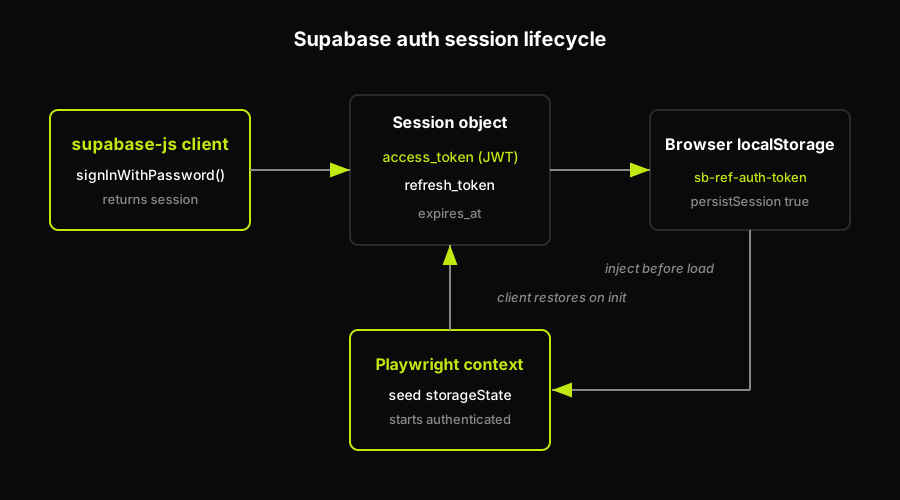
When a user authenticates with Supabase, the supabase-js client receives a session object containing an access_token and a refresh_token. The access token is a signed JWT used to authenticate every subsequent request. The refresh token is a long-lived opaque token that exchanges for a new access token when the JWT expires.
By default, persistSession is set to true in supabase-js. In a browser environment, the client automatically writes the session to localStorage under the sb-{project-ref}-auth-token key. On page load, it reads that key back and restores the session. This means authenticated state survives page refreshes without any action from your application code.
This is the mechanism that makes programmatic sign-in for tests so effective. If you can put the right values into localStorage before the page loads, the supabase-js client picks them up and the app behaves as if a real user just logged in. The auth state is not locked inside a form flow. It is a data structure you can construct directly.
The flip side is that this same mechanism is also where things rot. Session fixtures stored in test config or CI environment variables become invalid the moment a JWT signing key changes or an auth-schema migration runs. More on that in the last section.
Signing in via supabase-js for tests
The most straightforward approach for tests that need an authenticated user: call signInWithPassword({ email, password }) server-side or in a test setup hook before the browser launches. This returns a session object with the access and refresh tokens you need.
From that session, you have two ways to inject auth state into a browser context.
Option 1: seed localStorage. Before the page loads, set the sb-{project-ref}-auth-token key in localStorage to a JSON-serialized version of the session object. In Playwright, you do this in a storage state file or via page.addInitScript(). When supabase-js initializes, it finds the key, restores the session, and the app starts in an authenticated state.
Option 2: call setSession. After the page loads, call supabase.auth.setSession({ access_token, refresh_token }) directly. This is useful when you want to inject auth state into a running page without a full reload, though for most E2E tests the localStorage approach is simpler and more reliable.
For test user provisioning, the Supabase auth admin API is the right tool. The service-role key gives you admin access to create users (supabase.auth.admin.createUser()), delete them after the test run, or generate magic links on demand (supabase.auth.admin.generateLink()) without going through any external inbox. The critical constraint: the service-role key must never reach the browser or client-side code. It bypasses Row Level Security entirely. Use it only in server-side setup scripts, a CI environment variable, or a test fixture that runs outside the browser context.
The practical flow for a Playwright test suite: a setup script (running in Node, not in the browser) calls the admin API to create a test user, then calls signInWithPassword() to get a session, serializes the session to a storageState file, and Playwright picks up that file in its config. Every test in the suite starts authenticated, without any of them touching the login form.
Autonoma can also use its SDK/data factory for the app-side version of that setup. You connect your own create and teardown functions through @autonoma-ai/sdk factories, so Autonoma can create users with specific states, authenticate scenarios with those users, and delete the same users after the run. The SDK pattern uses defineFactory, createHandler, create, and teardown that calls userRepo.delete(user.id). This is not a claim that Autonoma has a native Supabase admin integration; it is app-side seeding through your own functions.
The magic-link path (and why it is flaky)
Supabase's default passwordless flow works through signInWithOtp({ email }). The server generates a one-time token, embeds it in a link, and dispatches the link to the user's inbox. The user clicks the link, the server validates the token, and a session is created.
In CI, clicking a link from a real inbox is not possible without external tooling. The test process cannot open Gmail. This is the fundamental problem with magic-link testing: the token exists in a third-party delivery system you do not control, and the test has to reach outside the browser to get it.
The two practical workarounds:
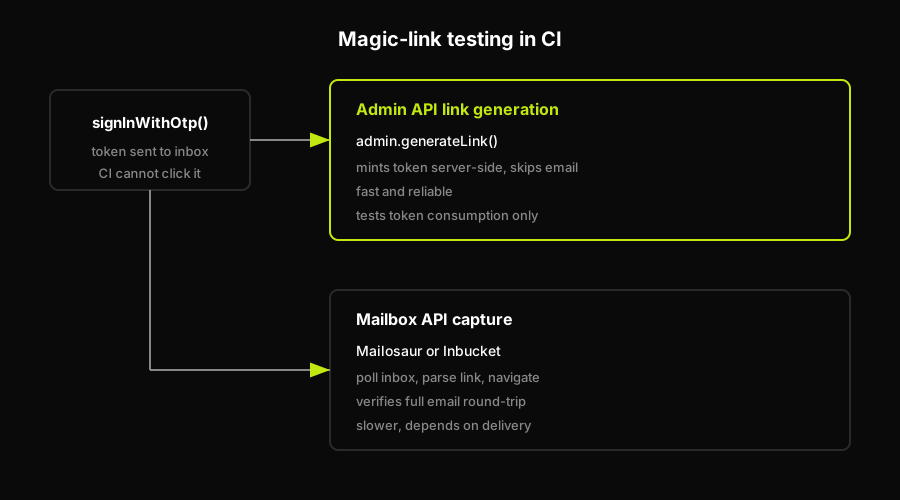
Mailbox APIs. Services like Mailosaur or Inbucket capture emails sent to test addresses and expose them through an API. Your test sends the OTP request, polls the API until the email arrives, parses out the link, then navigates to it in the browser. The deeper guide to testing magic-link and passwordless login covers this pattern in full, including polling strategy and link extraction.
Admin API link generation. Call supabase.auth.admin.generateLink({ type: 'magiclink', email }) server-side to mint a magic link directly, bypassing the email delivery step entirely. The returned URL contains the same token the email would have carried. Your test navigates to it in the browser and completes the flow. This is faster and more reliable than mailbox polling, but it only tests the token-consumption phase. It does not verify that the email was actually sent, formatted correctly, or delivered.
Both workarounds have tradeoffs. For most teams, admin-generated links cover the important path (does the magic-link token work?) and mailbox APIs cover the full round-trip when email delivery itself needs to be verified.
How Autonoma covers the login screen that programmatic sign-in skips
Programmatic sign-in via supabase-js is effective for testing the authenticated parts of your app. It is not a test of your login screen. The form, the validation states, the redirect sequence, the loading spinner between "check your inbox" and the authenticated landing page: none of that gets exercised when you seed a session directly into localStorage.
This is the blind spot that builds up silently. Your test suite grows, protected-route coverage looks solid, and at some point someone ships a change to the login component that breaks the redirect or the error state for expired tokens. The programmatic tests never catch it because they never ran the form.
Autonoma covers this gap by driving the actual login UI in a real browser, as a real user would. Its Executor agent runs the login screen end-to-end, including the form interaction, the redirect, and the authenticated landing state. The Planner agent derives these test cases from your codebase directly, reading your routes, your components, and your auth configuration, so it knows what the expected post-login state should look like. The Diffs Agent then runs on every PR, detects when the auth UI or the protected routes change, and updates the test plan accordingly. When your Supabase schema shifts or the login component is refactored, the suite adapts rather than failing silently.
The scope is honest: Autonoma is not a replacement for unit tests on your supabase-js setup code, and it does not replace the programmatic sign-in approach for seeding auth state across a large suite. It is the layer that covers the real-browser login flow that programmatic testing skips.
Where this rots: schema and key rotation
Programmatic sign-in tests are reliable until they are not. Two scenarios break them silently.
JWT signing-key rotation. Supabase signs JWTs with a secret. If that secret changes (either manually or during a project migration), every previously-captured access token becomes invalid. Stored session fixtures in CI environment variables, storageState files committed to the repo, and hardcoded tokens in test helpers all stop working at once. The failure mode is not obvious: tests that relied on a pre-seeded session start failing on protected-route assertions, which looks like a routing bug rather than an auth config change.
The fix is to always generate fresh tokens in the test setup phase rather than committing static tokens. Build the session during CI initialization, use it for the run, and discard it. Never commit an access token.
Auth-schema migrations. The GoTrue-compatible auth schema that Supabase uses (the auth schema in Postgres) can shift during major Supabase version upgrades. If your test fixtures or stored-session logic depend on specific table shapes or token structures, a schema migration can silently invalidate them. This is rare, but it is worth auditing your test setup whenever you upgrade Supabase.
The programmatic-sign-in blind spot (repeated because it matters). Every approach in this post tests the SDK and your app's authenticated state. None of them test the login screen itself. If your Supabase project's auth UI, redirect logic, or protected-route middleware changes, a suite built entirely on programmatic sign-in will not catch it. Testing the real login screen with a browser-driven E2E test is the only way to close that gap. For teams also testing other auth providers, the same pattern applies: how to test Clerk authentication follows an almost identical setup-and-session-injection structure, making it straightforward to extend the same test infrastructure across providers.
FAQ
The fastest approach for most tests is to sign in programmatically via the supabase-js client using signInWithPassword(), capture the returned session object (access_token and refresh_token), and inject it into your browser context by seeding the sb-{project-ref}-auth-token key in localStorage. The supabase-js client restores the session on initialization and your tests start already authenticated. For the magic-link flow, use the auth admin API to generate links server-side or use a mailbox API service to capture real emails in CI. The login form itself requires a separate browser-driven E2E test, since programmatic sign-in bypasses it entirely.
Serialize the session object returned by signInWithPassword() or the admin API and write it to the sb-{project-ref}-auth-token key in localStorage before the browser loads your app. In Playwright, this can be done via a storageState file or addInitScript(). Because persistSession defaults to true in supabase-js, the client automatically reads this key on initialization and restores the authenticated session. Avoid committing static access tokens to your repo: generate a fresh session in the CI setup phase, use it for the run, and discard it. Committed tokens become invalid when the JWT signing key is rotated.
Two approaches work in CI. The first is to call supabase.auth.admin.generateLink({ type: 'magiclink', email }) server-side (using the service-role key) to mint the token directly without sending an email, then navigate to the returned URL in your browser test. The second is to send a real magic link and capture it from a test inbox using a service like Mailosaur or Inbucket, poll their API until the email arrives, extract the link, and navigate to it. The admin API approach is faster and more reliable; mailbox APIs are better when you need to verify that email delivery itself is working correctly.
Yes. The recommended pattern is a global setup file that calls signInWithPassword() outside the browser, serializes the session, and writes a Playwright storageState file. All tests then reference that storageState in their project config and start with an authenticated browser context. You can also call setSession() inside a page.addInitScript() callback to inject the session at runtime. Either way, the supabase-js client picks up the session and the app behaves as authenticated. The only flows that require driving the actual login UI are the magic-link redirect and assertions about the login form itself.
First, ensure your test starts with an authenticated session: seed the supabase-js session into localStorage or use a Playwright storageState file generated in global setup. Then navigate directly to the protected route and assert the expected content. Also write a negative test that navigates to the same route without a session and asserts the redirect to the login page. Watch for silent breakage: if the JWT signing key rotates or an auth-schema migration runs, your stored sessions become invalid and the protected-route tests will fail in a way that looks like a routing bug. Always generate fresh sessions in CI setup rather than committing static tokens.


