

A test case template is a standard row-and-column format for documenting how a single test should be run and judged, so any engineer can execute it the same way twice. The standard fields are ID, title, precondition, steps, test data, expected result, actual result, and status. Below is a downloadable companion template with the full column set, worked positive and negative examples, and format guidance for both Excel and Google Sheets.
Every QA team has one of these somewhere: a spreadsheet titled test_cases_FINAL_v3.xlsx, last touched by someone who left the company, with half the rows referencing a checkout flow that got redesigned eight months ago. Nobody deletes it. Nobody fully trusts it either.
That's not a tooling problem. It's a template problem, compounded by time. A test case template only earns its keep if the fields are precise enough that two different engineers, reading the same row six months apart, would execute the identical steps and agree on whether it passed. Most templates fail that bar because they skip the two fields that make a test case reproducible: precondition and test data. Below is a version that doesn't skip them, plus the honest math on how long a spreadsheet like this actually holds up.
What a test case template includes
A test case is only useful if someone other than its author can run it correctly without asking a follow-up question. That requirement is what defines the field list, not convention. Here is what each field does and why it's there.
The 8 standard fields
- ID: A unique identifier such as
TC-001, used to reference the case from bug reports, test plans, and run history without retyping the title. - Title: A short, specific description of what's being verified, written as an outcome ("Login fails with incorrect password") rather than an action ("Test login").
- Precondition: The state the system must be in before the steps start, such as "user account exists and is not locked" or "cart contains at least one item." Skip this field and the test becomes unreproducible, because the same steps against a different starting state produce a different result.
- Steps: The exact sequence of actions, numbered and specific enough that two people would click the same things in the same order.
- Test data: The literal input values used, such as the email, password, or SKU. Test data belongs in its own field, not folded into the steps, because data changes far more often than the procedure does.
- Expected result: The specific, verifiable outcome if the system behaves correctly. "Error message displays" is weak. "Error message reads 'Invalid email or password' and the password field clears" is a test case.
- Actual result: What actually happened when the case was last run. This field is what turns a static checklist into a record.
- Status: Pass, fail, blocked, or not-run, tied to the most recent execution.
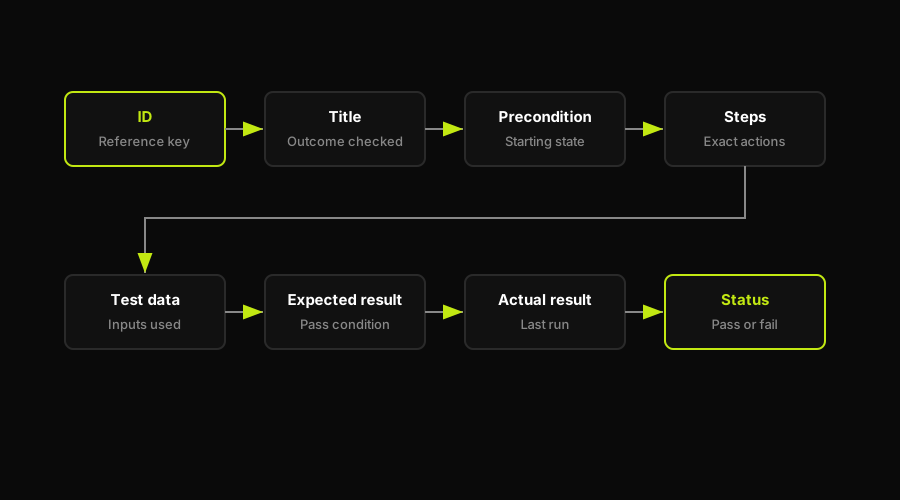
The template works because each field answers one execution question: what to run, from what state, with what data, and how to judge it.
For manual and exploratory testing, those fields still matter. For automated E2E flows, the same structure is also a useful mental model for what Autonoma generates and maintains from the codebase: the Planner agent identifies the flow and the required state, the Executor runs it, the Reviewer classifies the result, and the Diffs Agent keeps the case aligned as the app changes.
The free test case template
There's no gated file here. The usable version lives in the companion repo, not in a full-width table squeezed into the article. Use the Excel file if you want a ready-to-edit workbook, or use the CSV files if you want to import the template into Google Sheets, Airtable, Notion, or another test tracking workflow.
What's included:
test-case-template.csv: the eight-column starter template with three example rows.test-case-template.xlsx: the same template formatted for Excel, with the header row frozen andStatuslimited toPass,Fail,Blocked, andNot Run.examples/login-test-cases.csv: five ready-to-edit login cases you can copy into the starter template.
How to use it:
- In Excel, download
test-case-template.xlsxfrom the companion repo, duplicate the starter rows for new cases, and use theStatusdropdown instead of typing custom status values. - In Google Sheets, create a blank spreadsheet, choose File > Import > Upload, upload the starter CSV from the companion repo, then choose "Replace spreadsheet" for a new template file or "Insert new sheet" if you are adding it to an existing workbook.
- If you want to copy instead of download, open the starter CSV, copy the rows, and paste them into cell A1 of your spreadsheet.
Here is the starter CSV from the companion repo:
Preview, reduced to the columns that fit cleanly in the article:
| ID | Title | Expected result | Status |
|---|---|---|---|
| TC-001 | User logs in with valid credentials | User is redirected to /dashboard and sees their name in the header | Not Run |
| TC-002 | User cannot log in with wrong password | Error message reads "Invalid email or password" and user stays on /login | Not Run |
| TC-003 | Cart total updates after quantity change | Line total shows $60.00 and cart subtotal recalculates to $60.00 | Not Run |
Positive and negative test case examples
Most templates only show a happy-path row, which is exactly the case that's hardest to get wrong. The rows that actually catch bugs are the ones that check what happens when something is invalid, missing, or out of range. Here's one of each, filled out completely.
Positive test case. ID TC-010, "User successfully resets password with a valid reset link." Precondition: user has requested a password reset and holds an unexpired reset token. Steps: open the reset link, enter a new password meeting complexity rules, confirm the password, click Reset. Test data: newPassword: NewSecure99!. Expected result: user sees a confirmation message and can log in immediately with the new password; the old password no longer works.
Negative test case. ID TC-011, "Password reset fails with an expired token." Precondition: the reset token was issued more than 24 hours ago. Steps: open the expired reset link, enter a new valid password, click Reset. Test data: newPassword: NewSecure99!, token age: 25 hours. Expected result: the system rejects the request with "This reset link has expired," no password change occurs, and the old password still works.
The negative case is doing more work than the positive one. It's checking that expiration logic actually runs server-side rather than trusting whatever a possibly-tampered client sends, which is precisely the kind of gap that a happy-path-only suite never surfaces.
The companion repo includes a fuller login-flow set with valid credentials, wrong password, unknown email, blank password, and logout cases separated into rows:
Test case template in Excel vs Google Sheets
The column structure is identical in both. The difference is in the small features that make a spreadsheet survivable as a team artifact rather than a personal notes file, and in how the file behaves once more than one person touches it.
In Excel, use Data Validation on the Status column to restrict it to a dropdown of Pass, Fail, Blocked, and Not Run, so nobody types "passed" in one row and "PASS" in another and breaks your filters. The formatted workbook in the companion repo already has the header row frozen and the Status dropdown set up. Freeze the header row under View then Freeze Panes if you rebuild the file from CSV, so column labels stay visible while scrolling through hundreds of rows. Conditional formatting can shade failed rows red and passed rows green, which makes a long sheet scannable at a glance instead of requiring you to read every Status cell in sequence. Sharing means emailing the file, storing it on a shared drive, or using OneDrive's co-authoring mode, and version conflicts are a real risk if two people edit local copies at once rather than the same live file.
Google Sheets gets you the same dropdown through Data then Data Validation, and the same frozen header through View then Freeze. Where Sheets wins is collaboration: multiple engineers can fill in Actual Result and Status simultaneously during a test cycle without merge conflicts, and comment threads on individual cells let a reviewer flag a specific case without a separate Slack message. Filtering by Status to see only failed cases works the same way in both tools, using a filter view rather than a permanent filter so you don't accidentally hide rows for the next person who opens the file. Version history in Sheets also means you can see exactly who changed a given Expected Result and when, which matters more than it sounds like it should once a case has been edited by four different people over a year.
Neither tool solves for permissions at scale. If a contractor only needs to fill in Actual Result for ten rows, both Excel and Sheets will hand them edit access to the entire file unless you split it into separate tabs or separate documents, which itself becomes another thing to keep in sync.
Why a test-case spreadsheet stops scaling
None of this fixes the underlying ceiling. There is no universal verified row count where a spreadsheet fails; the failure mode is operational, not numeric. Three things break at once when the sheet grows beyond what the team actively maintains. Rows go stale because nobody updates Expected Result when the feature changes, so a case that used to be accurate now documents behavior the product no longer has. There's no run history: Status shows the outcome of the last execution and nothing before it, so you can't tell if a case has been flaky for months or failed for the first time today. And there's no linkage to code, so when a pull request changes the checkout flow, nothing tells you which rows now describe a screen that doesn't exist anymore. Someone has to remember, and eventually someone doesn't.
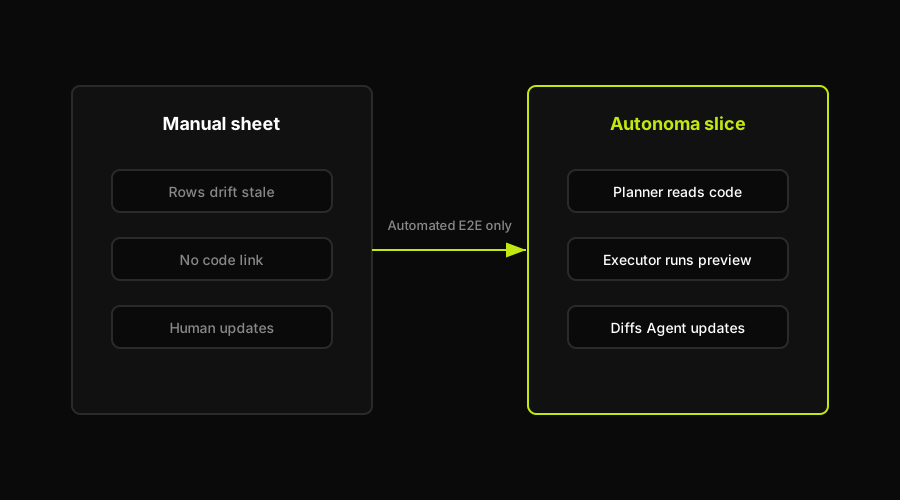
A spreadsheet is useful for human-owned cases. Autonoma is useful for the automated E2E slice that should not live as stale rows.
That upkeep cost is really the cost of hand-authoring every case in the first place. The cheapest test case is the one nobody had to write or update by hand. For the slice of your suite that covers stable, repeatable user flows, cases can generate and maintain themselves against your actual codebase instead of living as rows that quietly drift out of date. That's the layer Autonoma covers for automated E2E testing: it plans cases from the codebase, runs them in live preview environments, reviews the result, and updates affected tests on pull requests. It is not a template, a spreadsheet replacement, or a test management platform for manual cases; it is the layer that reduces how many browser-flow cases your team has to document and maintain by hand.
Test case vs test plan: which template do you need
A test case template documents one specific, executable check, the kind covered above. A test plan is the layer above it: scope, timeline, resources, entry and exit criteria, and which test cases belong to which release. If you're documenting "how do I verify this one login flow," you want this page. If you're documenting "what are we testing this sprint and when," that's a test plan template, which is a separate artifact worth keeping in its own sheet rather than mixing into the case list.
FAQ
A test case template is a standard format for documenting how to execute and judge a single test, typically as a row with columns for ID, title, precondition, steps, test data, expected result, actual result, and status. It lets any engineer run the same check the same way and record whether it passed.
At minimum: a unique ID, a title describing the outcome being checked, the precondition (starting state), numbered steps, the specific test data used, the expected result, the actual result from the last run, and a status (pass, fail, blocked, or not run). Precondition and test data are the two fields most templates skip, and skipping them is what makes a test case unreproducible.
A positive test case verifies that the system behaves correctly with valid input, such as logging in with the right password. A negative test case verifies that the system correctly rejects or handles invalid, missing, or expired input, such as a login attempt with an expired token. Negative cases catch more real bugs because they test the paths developers are least likely to have manually checked.
Set up columns for ID, Title, Precondition, Steps, Test Data, Expected Result, Actual Result, and Status. Use Data Validation on the Status column to enforce a fixed dropdown (Pass, Fail, Blocked, Not Run), and freeze the header row under View then Freeze Panes so labels stay visible as the sheet grows. Paste a copied template directly into cell A1 and Excel will preserve the column split automatically.
There is no universal verified row count. A spreadsheet becomes hard to trust when rows go stale as features change, there is no run history beyond the last execution, and nothing links a case to the code it is actually testing, so cases silently drift out of date until someone notices in production.


